Getting started
How to use Lexisub: multiple subtitles on Netflix, end to end
Install once, then turn any episode into a language lesson — multiple subtitles on screen at the same time, with one-click phrase saving and a built-in study mode.
The 30-second version: Install Lexisub → open a title on Netflix → tick the languages you want in the on-player panel → read them all at once → click any word to save it. Everything below is the detail.
1. Install the extension
Lexisub is a Chrome extension (Manifest V3). Add it from the Chrome Web Store, pin it to your toolbar, and open any title on Netflix. The first time a video loads, a small control panel appears over the player — that panel is where everything happens while you watch.
You get a 14-day full free trial with every feature unlocked, so you can try multiple subtitles, saving, and study mode before deciding anything.
2. Show multiple subtitles at once
On a Netflix title, open the Lexisub panel and look at “subtitle languages for this title.” Lexisub reads the title's official subtitle tracks straight from the player, so the languages you see are the ones Netflix actually ships for that show.
- Tick the languages you want — for example your native language plus the one you're learning. Each becomes a layer, overlaid on the player and synced frame-by-frame.
- Reorder or recolour layers — use the up/down arrows and the colour swatch on each row so the lines never blur together.
- Load your own file — have a better
.srtor.vtt? Load it from disk and it becomes another layer.
Lexisub automatically hides Netflix's own caption line while your layers are showing, so you never see the same subtitle twice.

3. No track for the language you want? Generate one
Sometimes Netflix doesn't carry the pair you need — say the show has English and Spanish, but you're studying it in Korean. In the panel, languages with no official track show a greyed-out “subtitle not provided” row with an [Generate AI subtitles] button.
Click it and Lexisub translates the missing track using your own DeepL, OpenAI, or Google Translate API key (set it once in the popup). The result is cached per title, so revisiting the show reloads it instantly at no extra cost. Translation only ever runs when you press the button — never automatically.
4. Save phrases as you watch
This is the part that turns watching into studying. Two ways to save the current line:
- Click any word — Lexisub saves the whole line, in every on-screen language, to your phrase list.
- Press the save shortcut (default
s) — captures the current line hands-free. You can rebind it in the popup; Lexisub warns you if your key clashes with a Netflix shortcut.
Saved lines are grouped by title, so everything from one show stays together. Your phrases live in your own browser — nothing is uploaded.
5. Review and study mode
Open the saved phrases dashboard (from the popup or the panel) to search, delete, and export what you've collected. Export to:
- CSV — drop straight into Anki for spaced-repetition review.
- Markdown or PDF — for notes, or to print.
- Copy / Share — send a batch to yourself or a study partner.
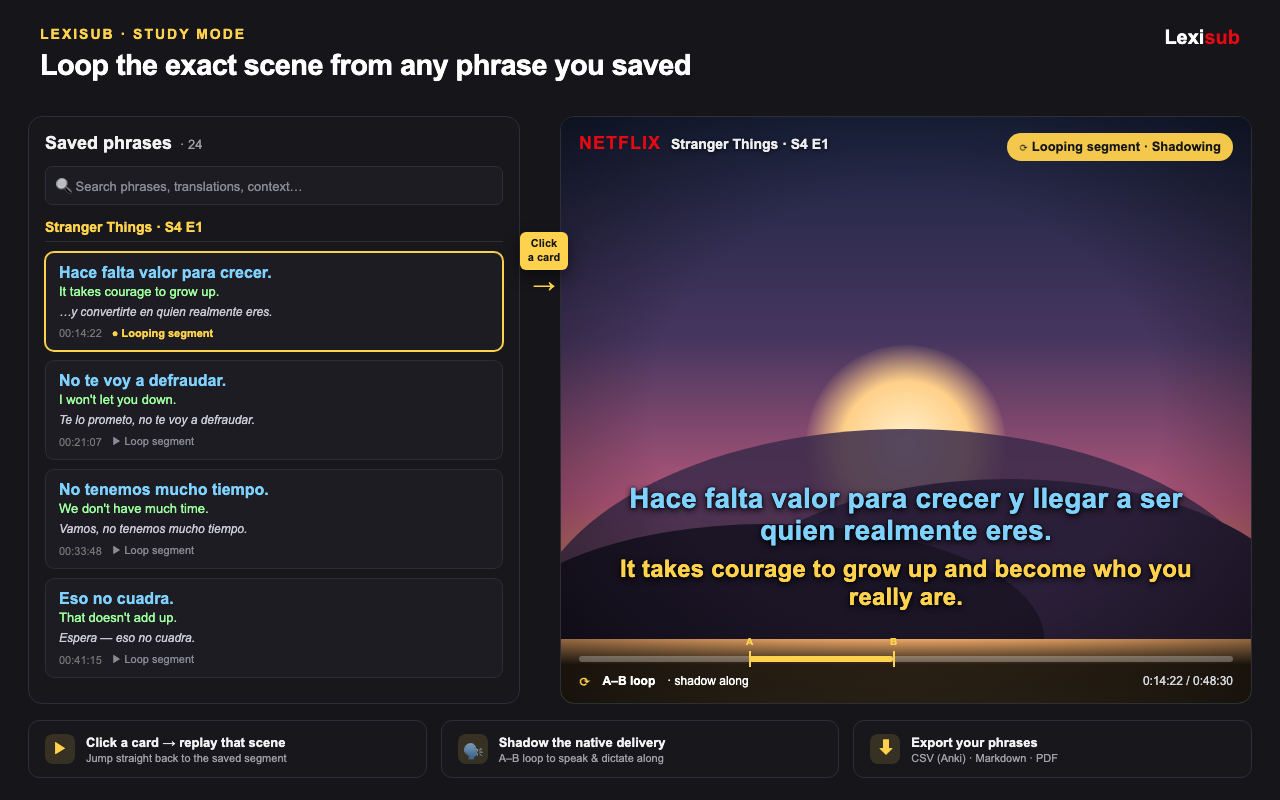
Study mode turns Netflix into a split-screen workspace: your phrase cards on one side, the player on the other. Loop any saved segment (A–B repeat) to shadow and repeat the line, then jump back to full-screen Netflix with one click.
6. Make it comfortable to read
Open the Lexisub popup to set defaults that stick across every show: subtitle size, vertical position, a default colour palette, your preferred subtitle languages, and your AI translation key. Every change applies instantly. The interface itself is available in 12 languages, switchable from the popup.
Troubleshooting
No subtitles appear
Make sure at least one language is ticked in the panel. If the language list is empty, refresh the page — Lexisub needs to read the title's track list as the player loads, and a refresh re-runs that. If a track still isn't there, load a .srt file or generate an AI track instead.
The language picker is empty
Refresh the Netflix tab once. Lexisub hooks the player's manifest at page load; navigating within Netflix's single-page app occasionally needs one reload to re-attach.
Subtitles are out of sync
This only happens with your own loaded files (official tracks are always in sync). Use the −/+ nudge in the panel to shift timing in 0.5-second steps until it lines up.
The panel disappears in full screen
It shouldn't — Lexisub re-mounts itself onto Netflix's full-screen player every frame. If it ever vanishes, toggle full screen off and on once.